 ailia Tech BLOG
ailia development using Visual Studio Code
This is a tutorial on how to develop with ailia SDK in python using Visual Studio Code, a powerful source code editor. ailia SDK is a GPU-accelerated deep learning inference tool that uses C++, python, C#, and JNI. You can learn more about ailia SDK here.
Visual Studio Code (VSCode) is a highly functional source code editor developed by Microsoft for Windows/Linux/macOS that supports various programming languages. It has features such as syntax highlighting, code completion, debugging, and Git control when writing source code. In this article, we will present how to use VSCode to write code with ailia SDK in python. First of all, please refer to this article to set up your ailia python development environment.
There are two versions of Visual Studio Code: an open source version and a commercial license version (free of charge) provided by Microsoft. We will use the later for this tutorial. Once VSCode is up and running, install the Python language support extension.
The screen has been captured on Windows 10, but the same can be achieved on macOS/Linux with the same operation.
Clone the ailia models repository.
git clone https://github.com/ailia-ai/ailia-models
Since the VSCode configuration files are already part of the ailia-models repository, you can run and debug ailia with python code as soon as you open the repository.
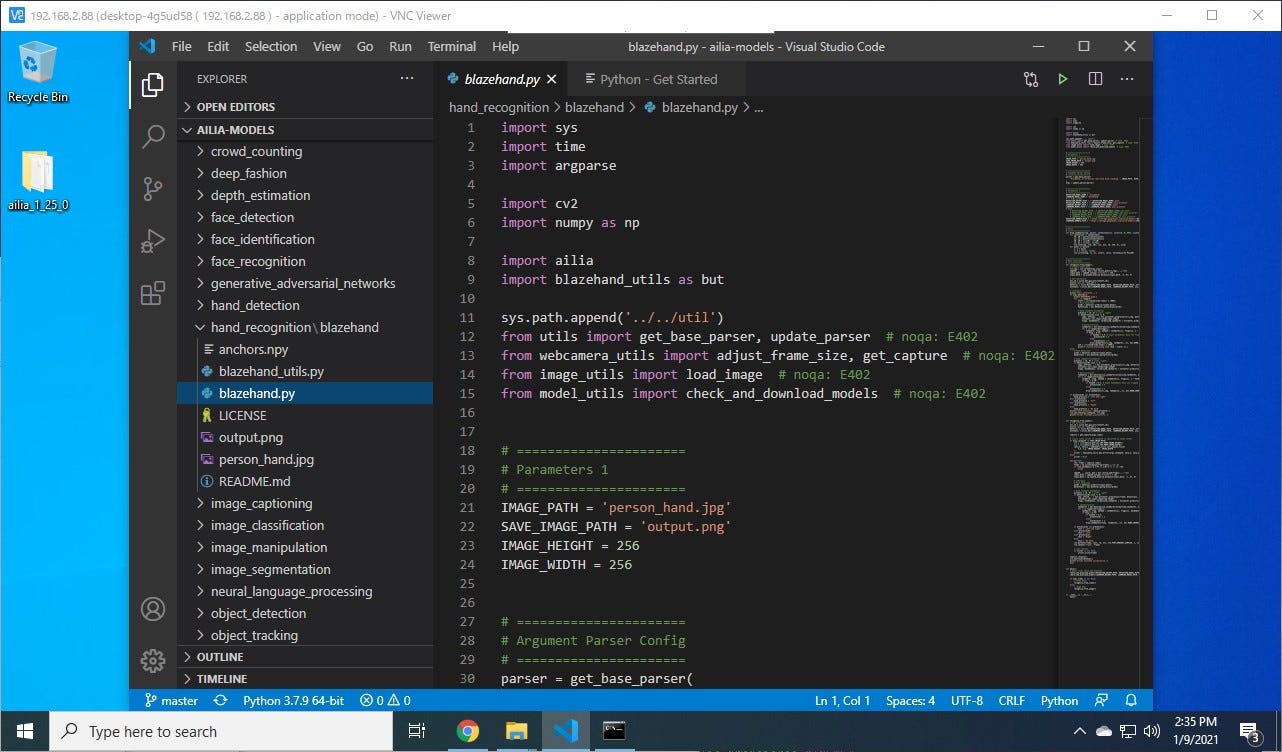
Let’s try running ailia-models/hand_recognition/blazehand. More details on BlazeHand are available in this article.
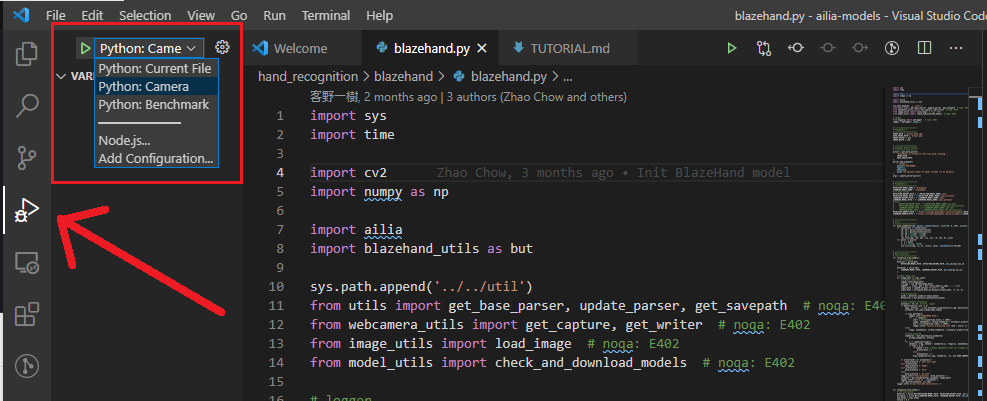
Select the Run icon in the vertical menu on the left, select the Camera or Benchmark configuration and press the Play green button to start the script. There are configurations to use the camera (Python:Camera) or an image file (Python:Current File) as input, and also a benchmark (Python:Benchmark) mode to measure the inference speed.
For users experiencing errors in an Anaconda environment on Windows, check the next section.
The first time you run the program, it will automatically download the model file, open a window, and display the inference results of applying the blazehand AI model to the input video from the camera. Note that the webcam is executed assuming a camera with ID=0 that can be recognized by OpenCV. If you want to apply it to cameras with other IDs, change the “0” in ”args”: [“-v 0”] in the ailia-models/.vscode/launch.json file to an appropriate ID.
{
“name”: “Python: Camera”,
“type”: “python”,
“args”: [“-v 0”],
“request”: “launch”,
“program”: “${file}”,
“console”: “integratedTerminal”,
“cwd”: “${fileDirname}”
},
When you click on the left of the line number in the VSCode source code, you can set a breakpoint to check the contents of the variable being executed and execute debugging such as step execution.
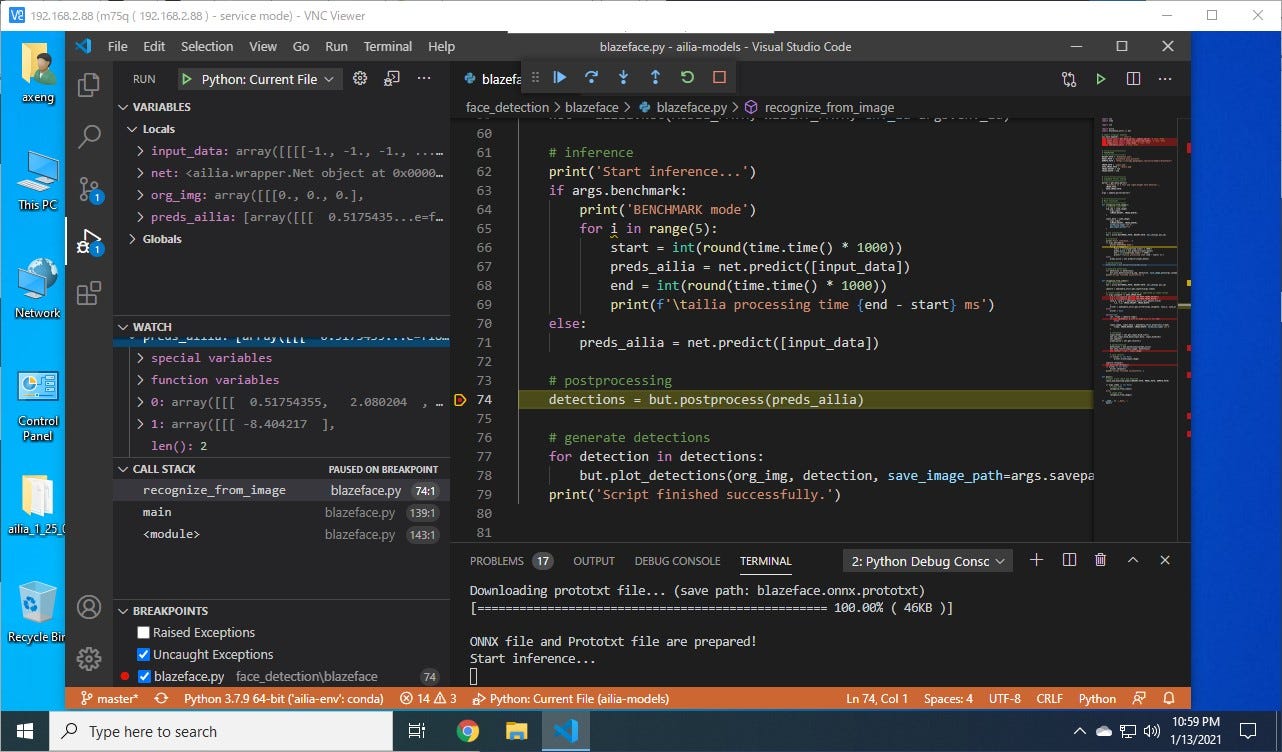
Setup on Windows with Anaconda
Starting the program with the method above spawns a new terminal to perform the action.
Make sure the default terminal is set to an environment having access to conda commands and a properly set python environment.
You can change the default terminal to be spawned directly from VSCode. the terminal cmd usually works out of the box but others (eg. git bash, powershell) can be setup to work as well.

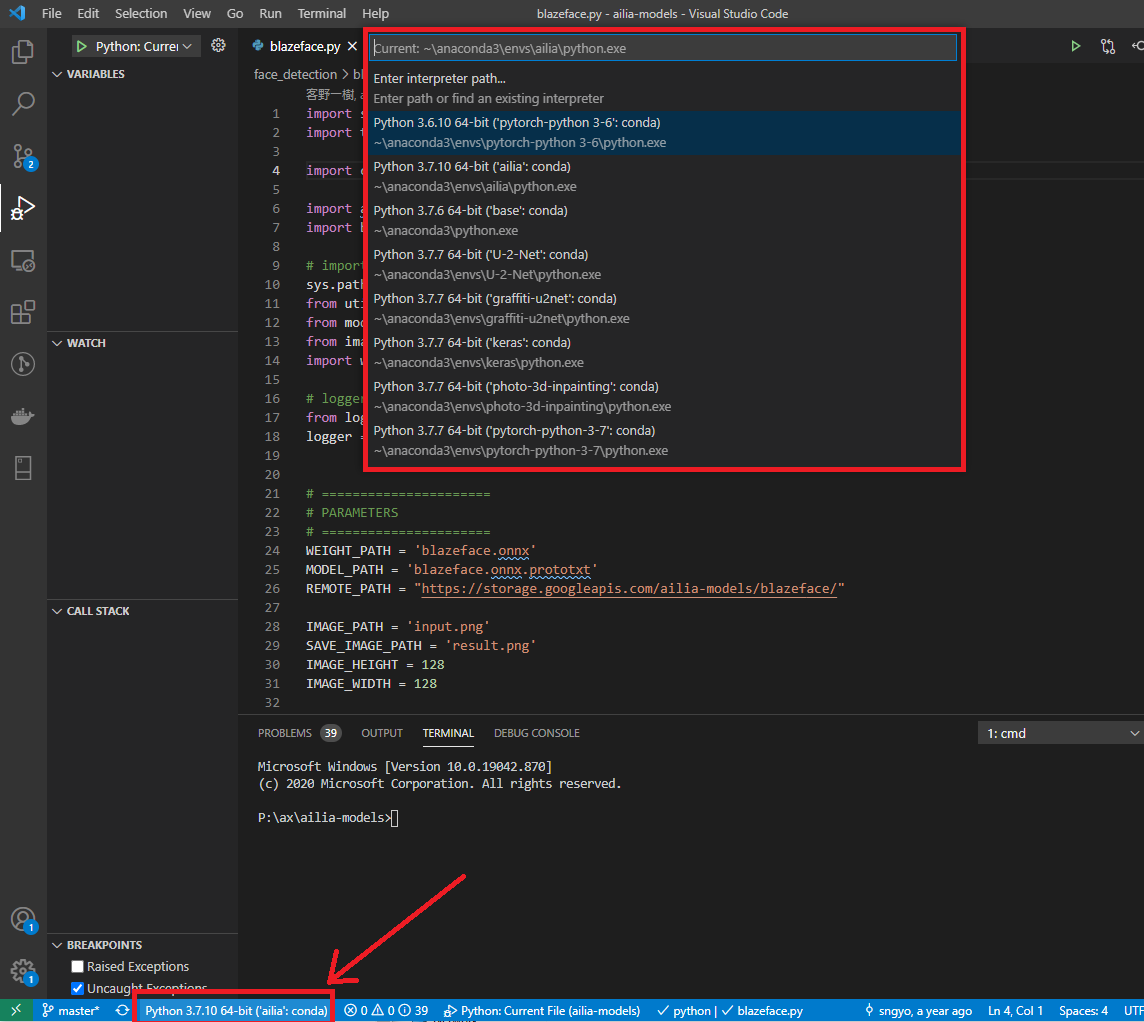
Also make sure the python interpreter to be used is the one attached to the environment you setup to run ailia. The interpreter can be set by clicking the python interpreter name at the bottom of the VSCode window, opening a dropdown at the top to select the interpreter path.
ailia Inc. has developed ailia SDK, which enables cross-platform, GPU-based rapid inference.
ailia Inc. provides a wide range of services from consulting and model creation, to the development of AI-based applications and SDKs. Feel free to contact us for any inquiry.